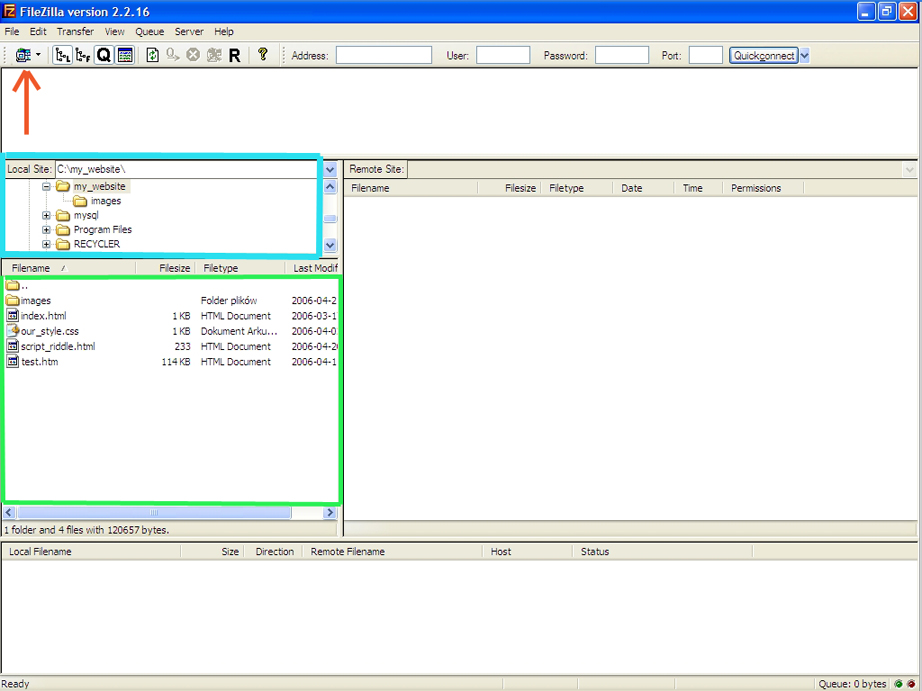
FileZilla is a freeware, so it means you can download it and use for free. A place to get it is i.e. FileZilla's homepage at SourceForgeNet, url: http://www.filezilla.sourceforge.net/
Once you downloaded and installed the program you'll be able to launch the program and proceed with uploading.
NOTE: You will need an FTP address of your site plus login name and password for it. All of it should be in the Login Information email you got from us after registering the hosting account, please refer to it.
NOTE: Please make sure that your local internet settings (firewall, anti-virus, IE Internet Options Security Settings) won't block you from connecting to the server on Port: 21 (you can skip this now, but if you have problems with connecting to your website please check it).
Step 1:- After you launch FileZilla you should get such screen:
Just follow the steps below and you will be able to create your email account in CPanel Hosting:-
- Login into your CPanel with the username and password
- Click on Mail
- Click Manage / Add / Remove Email Account
- Click on Add Account
- Enter your prefer email address, passwordand the Email Quota for this email account and click on Create.
There are two ways to upload your web site files to hosting server - using a File Manager (or similar) utility provided by the web hosting company or File Transfer Protocol (FTP). The first method is easier but time-consuming while the second is a faster method but needs a little technical knowledge.
Using the File Manager to upload files to a web hosting server
This method is applicable only if a File Manager (or similar) utility has been provided by your hosting company. The utility is generally located under the Control Panel of your account and so you need to login first. For instance, at my hosting accounts, the File Manager is displayed as an icon along with other utilities in the control panel. The File Manager icon looks like one below.
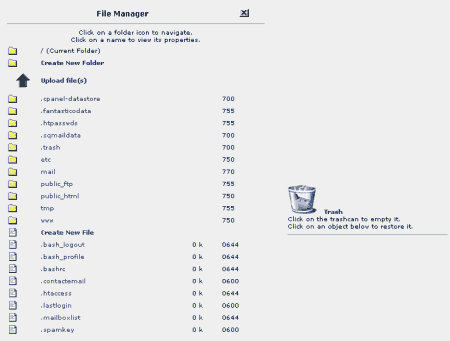
To use the File Manager, click on its icon. A new window opens and displays the directories at your web hosting account. [Refer image below]
In this post I will show you how to tell GoDaddy where your hosting account is, so that typing your domain name in their browser’s address bar will bring visitors to your web site. This is similar to updating your forwarding address at the post office when you move.
When you purchased your web hosting account, you received an e-mail with two or more DNS servers listed. This is the information you will need.
- Log into GoDaddy
Start with logging into your GoDaddy account with the user ID and password you have used when purchasing your domain name.
- Go to the domain management screen
Click on Domains button. It should be on the left side, towards the top, just under the GoDaddy logo. A menu will open. Select My Domain Names.
- Pick the domain name to update
You will see the list of all your domain names. Click on the one you want to update - it should be exactly the same as the domain you typed in when buying a hosting package.