FileZilla is a freeware, so it means you can download it and use for free. A place to get it is i.e. FileZilla's homepage at SourceForgeNet, url: http://www.filezilla.sourceforge.net/
Once you downloaded and installed the program you'll be able to launch the program and proceed with uploading.
NOTE: You will need an FTP address of your site plus login name and password for it. All of it should be in the Login Information email you got from us after registering the hosting account, please refer to it.
NOTE: Please make sure that your local internet settings (firewall, anti-virus, IE Internet Options Security Settings) won't block you from connecting to the server on Port: 21 (you can skip this now, but if you have problems with connecting to your website please check it).
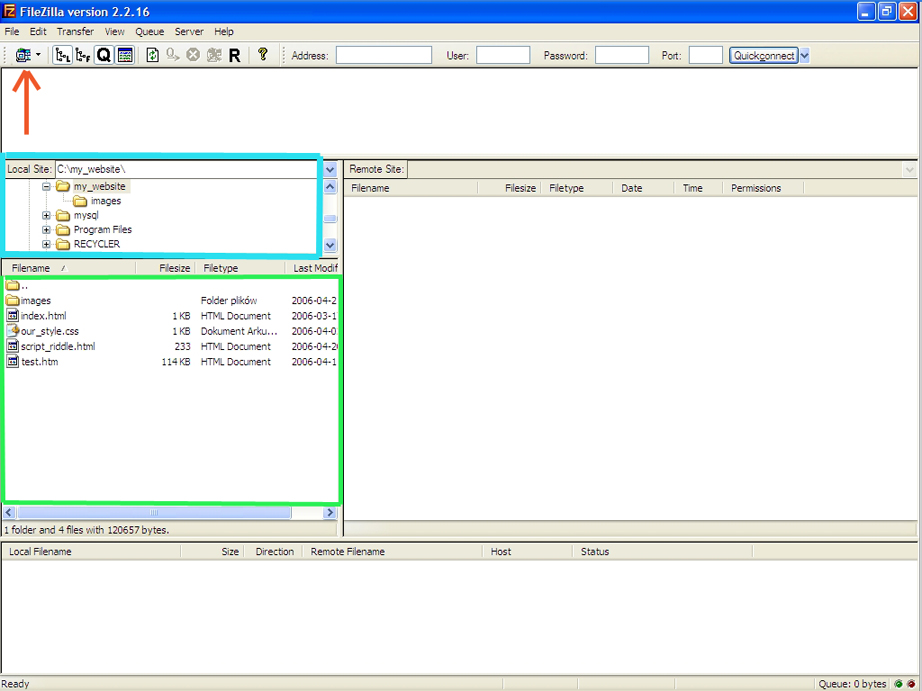
Step 1:- After you launch FileZilla you should get such screen:
There are two ways to upload your web site files to hosting server - using a File Manager (or similar) utility provided by the web hosting company or File Transfer Protocol (FTP). The first method is easier but time-consuming while the second is a faster method but needs a little technical knowledge.
Using the File Manager to upload files to a web hosting server
This method is applicable only if a File Manager (or similar) utility has been provided by your hosting company. The utility is generally located under the Control Panel of your account and so you need to login first. For instance, at my hosting accounts, the File Manager is displayed as an icon along with other utilities in the control panel. The File Manager icon looks like one below.
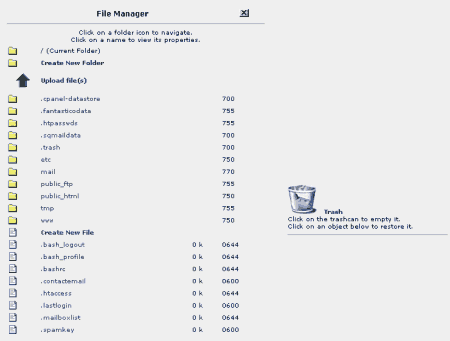
To use the File Manager, click on its icon. A new window opens and displays the directories at your web hosting account. [Refer image below]