Showing posts with label Web Hosting Help. Show all posts

Friday, February 1, 2013

Parking a Domain Name at Godaddy

This post explains how to park your domain name at GoDaddy.
A Parked Domain Name means that visitors see a temporary web page when they enter your domain name in a web browser. You can park your domain name to indicate you are reserving it until you create your website, find a hosting provider, or sell the domain name to a third party.

STEP 1 :- Go to At the top of the screen enter your Username/Customer# and Password and click Log In.

Parking domain name at GoDaddy-login

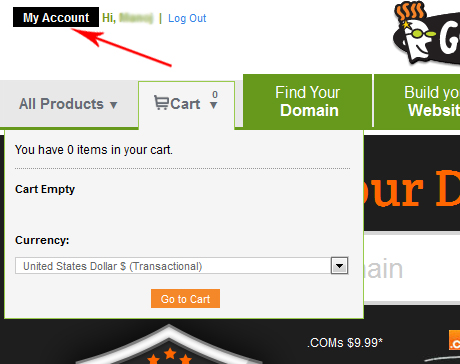
STEP 2 :- After logging in, click the My Account button on the top left.

Thursday, January 31, 2013

Change Nameservers at GoDaddy

A nameserver is similar to a telephone switchboard. It holds the information that tells the Internet where to find your web site and where to deliver your email. Name servers look something like this: 
ns1.example.com.

This post explains how to change your name server settings using GoDaddy. If your domain is registered at godaddy.com, you can change the nameservers to point to your web hosting account.

STEP 1 :-  Go to  At the top of the screen enter your Username/Customer# and Password and click Log In.
Change Nameservers at GoDaddy-login

STEP 2 :- After logging in, click the My Account button on the top left.

Change Nameservers at GoDaddy-My Account

Thursday, December 6, 2012

How to restore a website backup in cPanel

From previous post, I was explained, How to backup a website in cPanel. This post will give you a step by step guide on how to restore a website backup in cPanel.
Just follow the steps below:-
  1. Login into your cPanel with the username and password
  2. Click on Backups icon How to restore a website backup in cPanel

Monday, December 3, 2012

How to backup a website in cPanel

This post will give you a step by step guide on how to backup your website in cPanel.
Just follow the steps below:-
  1. Login into your cPanel with the username and password
  2. Click on Backups icon How to backup a website in cPanel
  3. Click on Download or Generate a Full Website Backup How to backup a website in cPanel

Friday, November 30, 2012

How To Install Joomla 1.7 through cPanel with Fantastico

This post will give you a step by step guide on how to install Joomla from your cPanel. If you have hosting managed by cPanel software, there's a way to install Joomla quickly for your hosting account. I will explain this procedure here in all possible details. To write this post, I used my hosting account.
  1. Login to cPanel of your hosting account. Please use information you received from your hosting provider about your cPanel link, username and password.
  2. Once you login to cPanel, look for Fantastico icon. Some hosting providers don't offer this cPanel service. If you can't find the Fantastico icon, it's probably not included with your hosting. Install Joomla through cPanel

Thursday, November 22, 2012

How to Find a Website's IP Address Using Windows 7

There are many ways to obtain and use a website's IP address. This is an easy way to find them using an online tool or a PC.
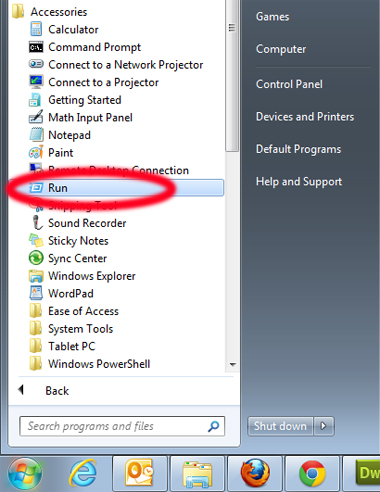
1. Navigate to START → Accessories → Run
How to Find a Website's IP Address Using Windows 7

Thursday, June 23, 2011

How to change file/folder permissions in cPanel?

All files on UNIX (including Linux and other UNIX variants) machines have access permissions. In this way the operating system knows how to deal with requests to access the files. There are three types of access:
  • Read - Denoted as r, files with read access can be displayed to the user
  • Write - Denoted as w, files with write access can be modified by the user
  • Execute - Denoted as x, files with execute access can be executed as programs bythe user
Access types are set for three types of user group:
  • User - The owner of the file
  • Group - Other files which are in the same folder or group
  • World - Everyone else

Tuesday, June 14, 2011

How to redirect www URLs to non-www?

In order to redirect all requests for www.yourdomain.com to yourdomain.com, you should set the appropriate rewrite rule. This can be done by adding the following lines at the beginning of the .htaccess file in your public_html folder:
RewriteCond %{HTTP_HOST} ^www.yourdomain.com [NC]
RewriteRule ^(.*)$ http://yourdomain.com/$1 [L,R=301]

From now on, when someone accesses http://www.yourdomain.com she/he will be redirected to http://yourdomain.com.
Using this method is safe because it should not create any redirection loops nor it should interfere with other rewrite rules.

Tuesday, April 19, 2011

How to check whether the cPanel ports are open?

You may experience issues with the non-standard http ports Cpanel works with. Usually Cpanel can be opened from:
  • http://yourdomainname.com/cpanel
  • http://yourdomainname.com:2082
  • http://cpanel.servername.com
Sometimes local firewalls allow only access to sites on port 80. In such cases, use the last URL. Note that the address "3" is a web based proxy which provides you with the option to access your cPanel via the default http port 80. We have set this extra service for our Customers which Internet Service Providers blocked ports 2082 and 2083.
You may check if the ports are blocked executing the following commands:

Tuesday, March 8, 2011

Monday, February 28, 2011

How to use Google's free SMTP Server?

Google's GMail offers a free SMTP server which can be used by anyone who has a GMail account.
If you don't have a GMail account, you can create one at the GMail account creation page. Then all you need to do is configure your mail client to use GMail for outgoing mail server. The details you should use are:
  • Outgoing Mail (SMTP) Server: smtp.gmail.com
  • Use Authentication: Yes
  • Use Secure Connection: Yes (this can be TLS or SSL depending on your mail client)
  • Username: your GMail account
  • Password: your GMail password
  • Port: 465 or 587

Wednesday, February 23, 2011

How to create custom mail filters in cPanel?

E-mail filtering allows you to select messages that contain certain string of text or other symbols, and either discard them, or send them to another e-mail box of your choice. Step 1:To access the user level filtering menu, click on the User Level Filtering icon on the main screen of your cPanel interface.

Step 2:Click on [Manage Filters] next to the account for which you wish to add filters

Thursday, December 30, 2010

How can enable anonymous FTP access in cPanel?

Anonymous FTP access can be enabled by logging in your cPanel. In the Files box you will find a link to Anonymous FTP.
Following this link will allow you to enable anonymous FTP access and configure all related options. Bear in mind that the anonymous users must log with the username anonymous@yourmain.com and any password. You should substitute yourdomain.com with your actual domain.

Tuesday, November 30, 2010

How to check whether FTP port 21 is blocked?

The default TCP port for FTP connection is port 21. Sometimes the local Internet Service Provider blocks this port and this will result in FTP connection issues.
Here's how to, depending on your OS, check whether your ISP blocks port 21:


Check port 21 with a Windows OS
Click on the Start menu button, click "Run".In the text field of this window you need to type "cmd" and then press the "Enter" key. Another window will open. It is the so called "MS-DOS prompt" or "command prompt". Just type the following command in the command prompt window and press "Enter":
telnet my-domain-name.com 21
Check port 21 with Apple/Mac
Each Mac OS is delivered with a preinstalled terminal emulator. The terminal is a tool which allows you to execute commands from the command line. Usually, the terminal is located under your Mac HD -> "Applications" directory -> Utilities sub-directory. When the window opens, you will see a command line with a flashing cursor on it so you can start typing right away. Just type the following command and press "Enter":
telnet my-domain-name.com 21

Thursday, November 25, 2010

How to add a new MIME type in cPanel?

In order to define a new Mime Type there are few simple steps you need to accomplish.
  • Log in to cPanel for your hosting account.
  • Under the Advanced category click MIME Types.
  • In the "Create a MIME Type" section add the desired MIME Type and file Extension(s). Then click the Add button.

How to connect to FTP with a web browser?

There are a few ways to connect by FTP to a host. The easiest way is using Internet Explorer which has the best ftp support.

In order to connect by FTP with your browser, you should just use the following address:
ftp://YourFtpUser:YourFtpUserPassword@yourdomain.com


However, if your FTP user to connect is similar to user@yourdomain.com then you will have to URL encode it like this:
ftp://YourFtpUser%40YourDomain.com:YourFtpUserPassword@yourdomain.com

In the above case it is important to note what the FTP username is: YourFtpUser%40YourDomain.com

This address is URL-encoded and comes from YourFtpUser@YourDomain.com where @ has been substituted with %40, which is the ASCII code for @.

How to check where a DNS record is pointing to?

In order to check a DNS record for your domain please use a third party tool such as:
www.iptools.com
www.mxtoolbox.com
If you need ask questions about this post, please email to webhostinghelper@gmail.com

Tuesday, November 23, 2010

How to park a domain in cPanel hosting?

Domain Parking is useful when you want people to get to your website with multiple domain name. (Domain Parking feature already exists in cPanel by default) Here’s the Domain Parking example: you have a website www.domain.com and now you wan your site to be easily access using other domain name as well. So you buy few more domains – www.domain1.com, www.domain2.com, www.domain3.com. By using the Domain Parking feature, visitor able to get into your www.domain.com using all the other new domain you buy just now.


Domain Parking – How to park a domain in cPanel Hosting
  1. Login to your cPanel
  2. Click on “Parked Domain”

Wednesday, November 17, 2010

How to create a CNAME record for a domain in Godaddy?

  1. Log in to your account at www.godaddy.com
  2. Open the Domains tab and select My Domain Names. You'll be directed to the Domain Manager page.
  3. Click the domain that you'd like to create CNAME record.
  4. Click the Total DNS Control And MX Records link at the bottom of the section entitled Total DNS.
  5. Click Add New CNAME Record in the box labelled CNAMES (aliases). If you've already created a CNAME record for your web address, click the pencil icon next to the existing CNAME record.
  6. Enter new DNS as the Host Name. Specify a TTL or use the default setting of 1 hour.
  7. Click OK, and then click OK again.

If you need ask questions about this post, please email to webhostinghelper@gmail.com

Wednesday, November 10, 2010

How to create a MySQL Database in CPanel?

  1. First, login to your CPanel account.

  2. Once you’ve logged in, select MySQL databases from the list. Keep in mind that your Cpanel account may be using a skin or different theme, so it will not always look exactly like the screenshot below.
Related Posts Plugin for WordPress, Blogger...