Showing posts with label Godaddy. Show all posts

Friday, February 1, 2013

Parking a Domain Name at Godaddy

This post explains how to park your domain name at GoDaddy.
A Parked Domain Name means that visitors see a temporary web page when they enter your domain name in a web browser. You can park your domain name to indicate you are reserving it until you create your website, find a hosting provider, or sell the domain name to a third party.

STEP 1 :- Go to At the top of the screen enter your Username/Customer# and Password and click Log In.

Parking domain name at GoDaddy-login

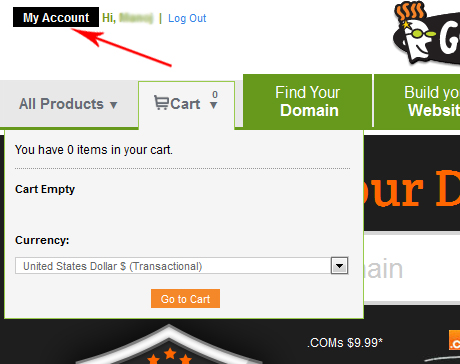
STEP 2 :- After logging in, click the My Account button on the top left.

Thursday, January 31, 2013

Change Nameservers at GoDaddy

A nameserver is similar to a telephone switchboard. It holds the information that tells the Internet where to find your web site and where to deliver your email. Name servers look something like this: 
ns1.example.com.

This post explains how to change your name server settings using GoDaddy. If your domain is registered at godaddy.com, you can change the nameservers to point to your web hosting account.

STEP 1 :-  Go to  At the top of the screen enter your Username/Customer# and Password and click Log In.
Change Nameservers at GoDaddy-login

STEP 2 :- After logging in, click the My Account button on the top left.

Change Nameservers at GoDaddy-My Account

Wednesday, November 17, 2010

How to create a CNAME record for a domain in Godaddy?

  1. Log in to your account at www.godaddy.com
  2. Open the Domains tab and select My Domain Names. You'll be directed to the Domain Manager page.
  3. Click the domain that you'd like to create CNAME record.
  4. Click the Total DNS Control And MX Records link at the bottom of the section entitled Total DNS.
  5. Click Add New CNAME Record in the box labelled CNAMES (aliases). If you've already created a CNAME record for your web address, click the pencil icon next to the existing CNAME record.
  6. Enter new DNS as the Host Name. Specify a TTL or use the default setting of 1 hour.
  7. Click OK, and then click OK again.

If you need ask questions about this post, please email to webhostinghelper@gmail.com
Related Posts Plugin for WordPress, Blogger...